Quick Answer
Forex trading platforms should be judged by how well they fit your workflow. MetaTrader 4 (MT4) remains useful for traders who rely on its mature MQL4 Expert Advisor and indicator ecosystem. MetaTrader 5 (MT5) is the stronger all-round MetaTrader platform, with 21 timeframes, 38 built-in indicators, 44 analytical objects, Depth of Market and a more advanced Strategy Tester. cTrader is attractive for traders who prefer a modern interface, detailed chart trading and automation in C# or Python. TradingView is especially strong for browser-based charting, alerts, Pine Script and cross-market analysis. The software is only one part of the decision: your broker determines pricing, execution, regulation, leverage and account protections.
Why This Guide Goes Beyond a Simple Platform Comparison
Most ‘best forex trading platform’ pages stop after listing a few features. That is not enough for someone learning to trade. The practical differences appear in everyday tasks: placing pending orders, measuring a stop in pips, opening a new order with a keyboard shortcut, switching charts quickly, testing an Expert Advisor, drawing support and resistance, viewing the ask price, checking account history, or creating an alert before a major economic release.
This guide therefore compares MT4, MT5, cTrader and TradingView at two levels: first, which platform suits which type of trader; second, how the platform’s shortcuts and workflow tools can make analysis and order management more efficient.
Forex Trading Platform vs. Forex Broker
A trading platform is the software you use to view charts, monitor prices and send orders. A forex broker is the financial firm that provides the trading account, pricing, execution and client relationship.
That distinction is crucial. The same MT5 terminal can be offered by two brokers with very different spreads, commissions, leverage, withdrawal rules and regulatory protections. Likewise, TradingView can connect to supported brokers, but TradingView itself is not the broker executing your forex trade.
Choose the platform for workflow. Choose the broker for regulation, costs, execution and account terms.
MT4 vs MT5 vs cTrader vs TradingView: Quick Comparison
| Platform | Best for | Charting | Automation | Main limitation |
|---|---|---|---|---|
| MT4 | Forex traders with existing MQL4 tools | 9 timeframes; 30 built-in indicators | MQL4 Expert Advisors | Older architecture; fewer native tools than MT5 |
| MT5 | New MetaTrader users and multi-asset workflows | 21 timeframes; 38 indicators; 44 objects | MQL5 EAs; advanced multi-currency testing | Some legacy MT4 tools need separate MT5 versions |
| cTrader | Manual chart traders and C#/Python algo users | Modern multi-chart workflow; multiple chart styles | cBots, indicators and plugins in C# or Python | Smaller legacy ecosystem than MetaTrader |
| TradingView | Charting, alerts and cross-market analysis | Supercharts, drawing tools, custom intervals | Pine Script indicators and strategies | Live execution depends on supported broker connection |
What to Look for in a Forex Trading Platform
Order Entry
Market, limit, stop and stop-loss orders should be easy to place and review before execution. One-click trading is useful only when position size and leverage are obvious.
Charting and Analysis
Your platform should support the timeframes, drawing tools and indicators you actually use. More indicators do not automatically improve analysis.
Automation and Backtesting
Algorithmic traders should check the coding language, tester, optimisation tools and whether strategies can be tested across multiple instruments.
Hotkeys and Workflow
Keyboard shortcuts matter more than they appear. Saving a few seconds on chart navigation, new orders, crosshair measurements and layout changes can reduce friction.
Mobile and Web Access
Test order modification, alerts and chart readability on the device you will really use.
Broker Compatibility
The platform must connect to a broker that legally serves your location and offers the instruments you want.
Execution and Costs
A fast-looking interface does not guarantee a fast fill. Spreads and broker costs, slippage, liquidity and infrastructure determine the actual execution result.
1. MetaTrader 4 (MT4): A Detailed Forex Workflow
MT4 remains one of the most familiar forex platforms. MetaQuotes lists 30 built-in indicators, three chart types and nine standard timeframes. Its long-standing advantage is the MQL4 ecosystem of Expert Advisors, scripts and custom indicators.
For a new trader, however, MT4 should be chosen for a reason – broker support, an existing EA, a custom indicator or a workflow you already know – rather than simply because it is famous.
MT4 Market Orders and Pending Orders
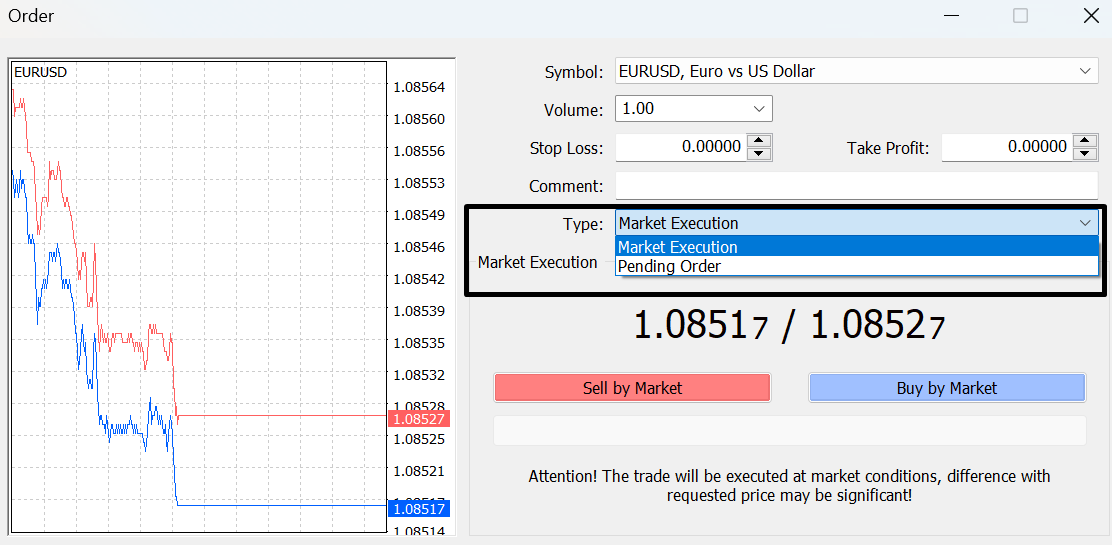
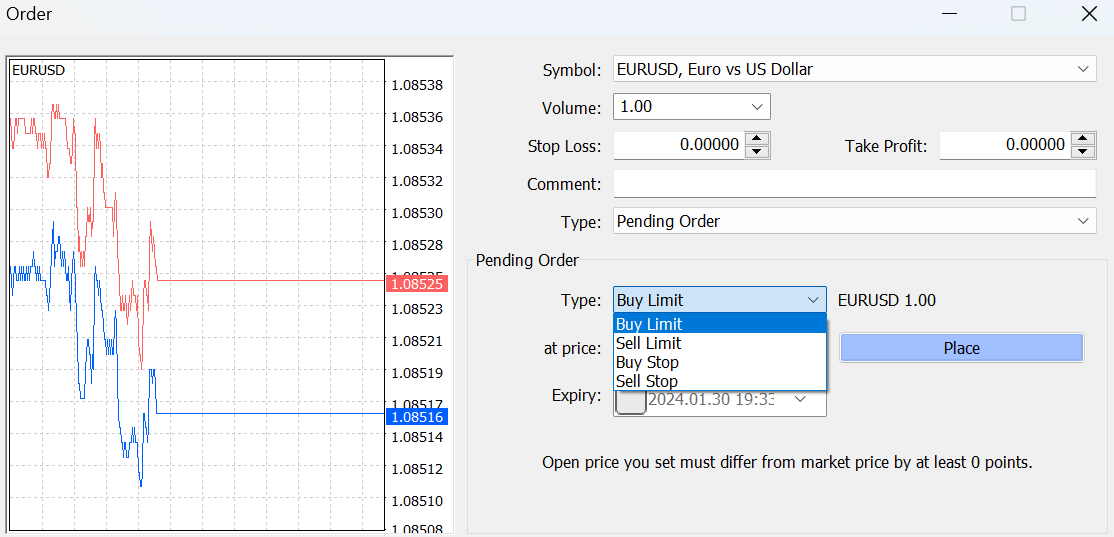
MT4 supports immediate market execution plus the four classic pending-order structures: buy limit, sell limit, buy stop and sell stop. A limit order looks for a better entry after price moves toward your level; a stop entry waits for price to break through a level before activating.
MT4 Crosshair: Measure Candles, Price and Pip Distance
The crosshair is one of MT4’s most useful built-in measurement tools. Press Ctrl+F or click the middle mouse button, then drag from one chart point to another. MT4 displays the number of bars and the price-distance measurement, which is useful when checking stop distance, target distance and the time taken for a move.
Displaying the Ask Line in MT4
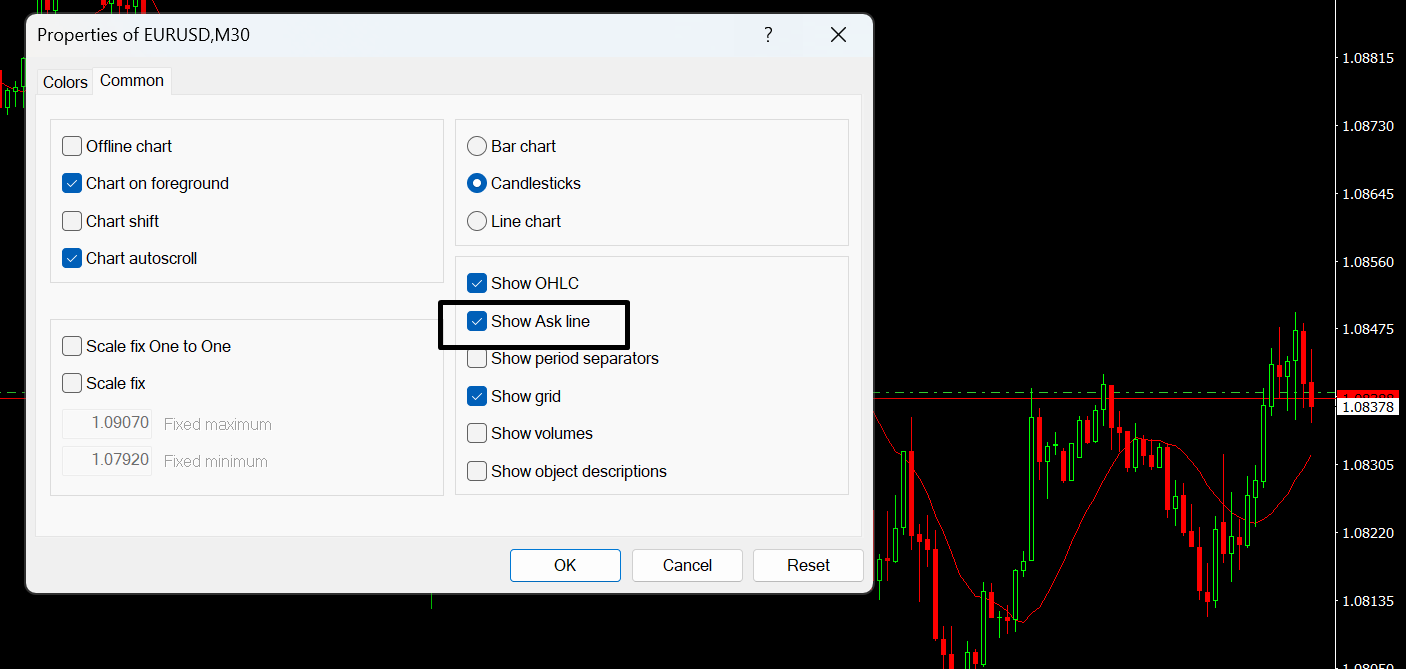
MT4 charts commonly focus on the bid price. Displaying the ask line can help beginners understand why a buy order can trigger even when the visible bid chart has not touched the same level. Press F8 to open Chart Properties, then enable the Ask line in the Common settings.
Turning the Grid On or Off
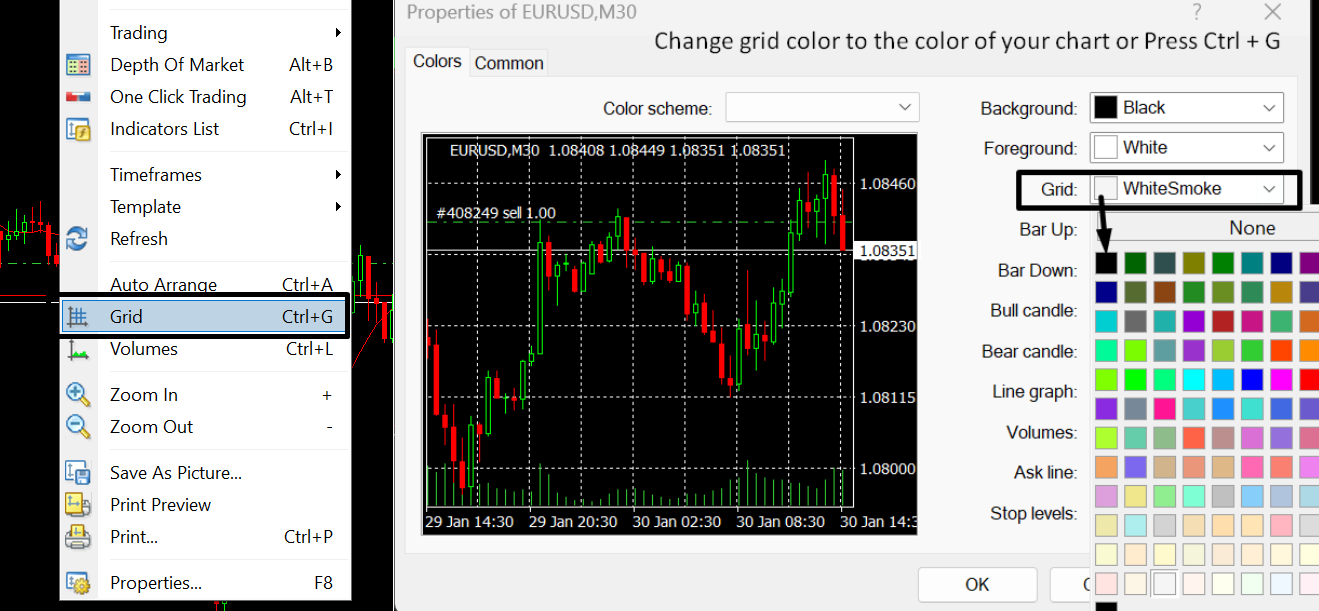
Press Ctrl+G to toggle the chart grid. This is a small feature, but removing visual clutter can make support, resistance, trendlines and candlestick structure easier to read.
Account History and Trading Reports
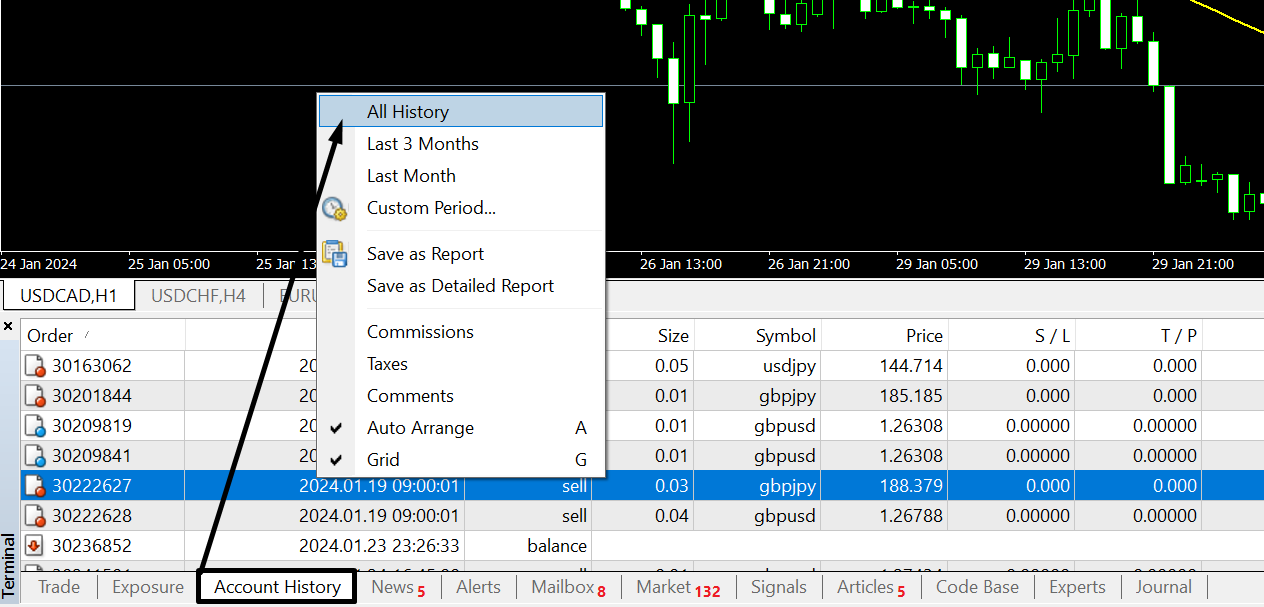
The Terminal’s Account History tab lets traders review closed transactions and save reports. The practical value is not the report itself; it is the ability to audit execution, position size, commissions, swap and the consistency of a strategy over time.
Custom Hotkeys for Indicators and Expert Advisors
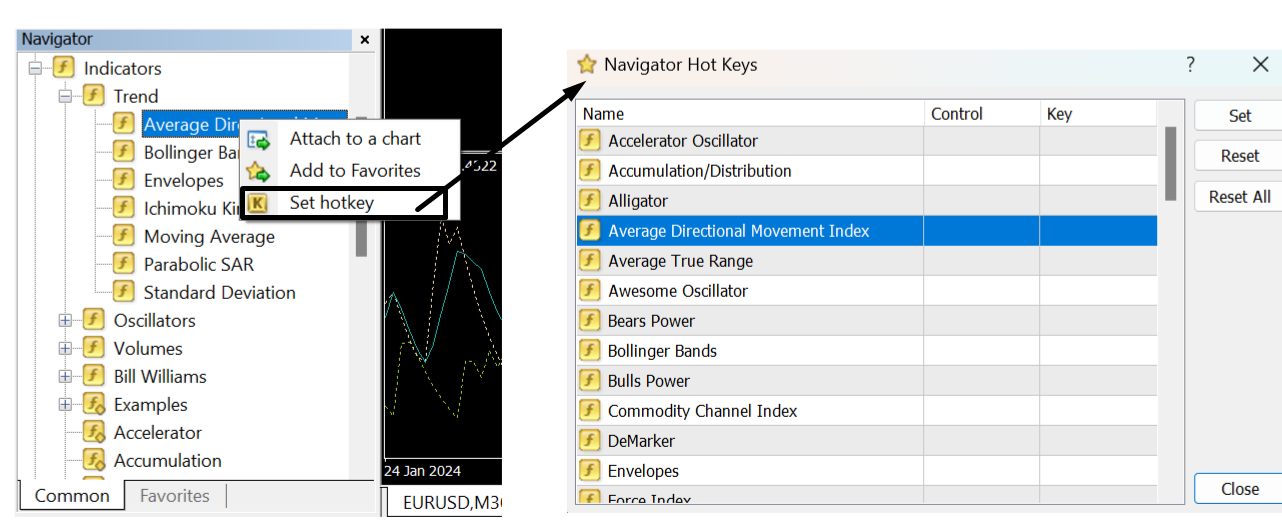
MT4 allows custom hotkeys to be assigned to items in the Navigator. Right-click an indicator, Expert Advisor or script and choose Set hotkey. Custom assignments can override predefined shortcuts, so avoid reusing an important default combination by accident.
MT4 Keyboard Shortcuts: Practical Cheat Sheet
| Shortcut | Action | Why it is useful |
|---|---|---|
| F9 | Open New Order | Fastest route to the order ticket. |
| Ctrl+T | Open/close Terminal | Access Trade, Account History, Alerts, News and logs. |
| Ctrl+M | Open/close Market Watch | Show or hide live symbols and quotes. |
| Ctrl+N | Open/close Navigator | Access accounts, indicators, EAs and scripts. |
| Ctrl+R | Open/close Strategy Tester | Backtest and optimise Expert Advisors. |
| Ctrl+F | Enable Crosshair | Measure chart distance and inspect candles. |
| Ctrl+G | Show/hide Grid | Clean up the chart. |
| Ctrl+I | Indicators List | Manage indicators already applied to the chart. |
| Ctrl+B | Objects List | Manage trendlines, rectangles, Fibonacci tools and other drawings. |
| F8 | Chart Properties | Change chart appearance and display settings. |
| F12 | Move one bar left | Useful for manual candle-by-candle review. |
| Shift+F12 | Move one bar right | Step forward after reviewing historical bars. |
| Enter | Fast Navigation | Jump to a date/time, symbol or timeframe. |
| End | Jump to latest bar | Return immediately to current price action. |
| Home | Jump to oldest loaded data | Useful when reviewing historical structure. |
| Alt+1 / Alt+2 / Alt+3 | Bar / Candlestick / Line chart | Switch chart type instantly. |
| Ctrl+Y | Show/hide period separators | Useful for seeing day/week boundaries. |
| Ctrl+D | Open/close Data Window | Inspect OHLC and indicator values precisely. |
| Ctrl+E | Enable/disable Expert Advisors | Control automated trading globally. |
| Ctrl+F9 | Focus Terminal Trade tab | Useful for keyboard-based trade management. |
MT4 Shortcut Detail Most Traders Miss: Fast Navigation
Press Enter on an active MT4 chart to open the Fast Navigation box. You can type a time, date, symbol, timeframe, or a symbol plus timeframe. For example, entering EURUSD, H4 changes the active chart to EUR/USD on the four-hour timeframe. This is much faster than repeatedly using menus when reviewing several markets.
2. MetaTrader 5 (MT5): The More Capable MetaTrader
MT5 expands the MetaTrader workflow considerably. Current MetaQuotes documentation lists 21 timeframes, 38 built-in technical indicators and 44 analytical objects. It also includes Depth of Market, an economic calendar and a more advanced multi-currency Strategy Tester.
MT5 uses MQL5 rather than MQL4. Existing MT4 EAs and indicators are not simply interchangeable with MT5 versions, so traders with a large legacy toolset should check compatibility before switching.
MT4 vs MT5: Important Differences
| Feature | MT4 | MT5 |
|---|---|---|
| Timeframes | 9 | 21 |
| Built-in technical indicators | 30 | 38 |
| Analytical / graphical objects | 31 graphical objects (MetaQuotes comparison) | 44 graphical objects (MetaQuotes comparison) |
| Depth of Market | More limited | Native Depth of Market |
| Automation language | MQL4 | MQL5 |
| Strategy testing | Legacy tester | More advanced multi-currency tester and optimisation |
| Economic calendar | Not native in the same way | Integrated economic calendar |
| Position accounting | Broker/product dependent | Supports netting and hedging systems where applicable |
MT5 Shortcuts: Similar to MT4, but Not Identical
Many MT4 shortcuts carry over, which makes migration easier, but there are important differences. For example, F2 opens History Center in MT4 but opens Task Manager in current MT5. Ctrl+T opens the Terminal in MT4 and the Toolbox in MT5. That is why shortcut lists should be platform-specific rather than copied blindly.
| MT5 shortcut | Current function |
|---|---|
| F9 | New Order |
| Ctrl+T | Open/close Toolbox |
| Ctrl+M | Open/close Market Watch |
| Ctrl+N | Open/close Navigator |
| Ctrl+R | Open/close Strategy Tester |
| Ctrl+F | Crosshair |
| Ctrl+G | Show/hide grid |
| Ctrl+I | Indicators List |
| Ctrl+B | Objects List |
| F8 | Chart setup |
| F12 / Shift+F12 | Move one bar left / right |
| Alt+1 / Alt+2 / Alt+3 | Bar / Candlestick / Line chart |
| Ctrl+D | Data Window |
| Ctrl+E | Allow/prohibit Expert Advisors |
| Ctrl+F9 | Focus the Trade tab in Toolbox |
MT5 Automation, Strategy Testing and Risk Tools
MT5 is the stronger MetaTrader environment for systematic testing. The tester can work with multiple currencies and supports optimisation, making it more suitable for traders who want to evaluate Expert Advisors across broader scenarios.
Backtesting is still not proof that a system will work live. Historical spreads, slippage, data quality, parameter overfitting and changing market conditions can all make live results different.
3. cTrader: Modern Chart Trading and Flexible Hotkeys
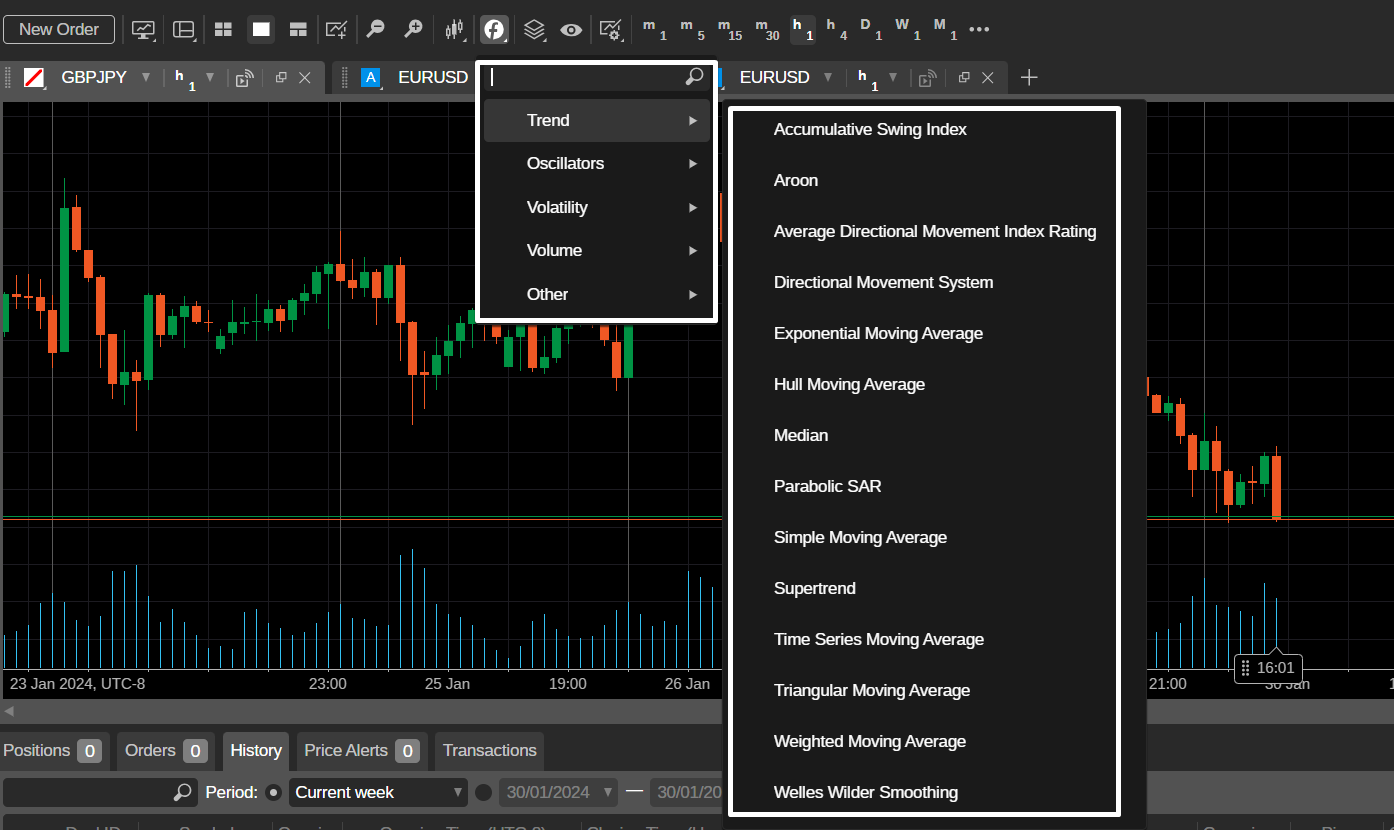
cTrader is built around a modern multi-device workflow. It combines manual chart trading, market depth, configurable workspaces and cTrader Algo. Current cTrader documentation supports cBots, custom indicators and plugins using C# or Python.
cTrader’s visual order entry is useful, but its hotkeys and Quick Trade controls make the interface more than a static feature list.
cTrader Chart Periods and Alternative Chart Styles
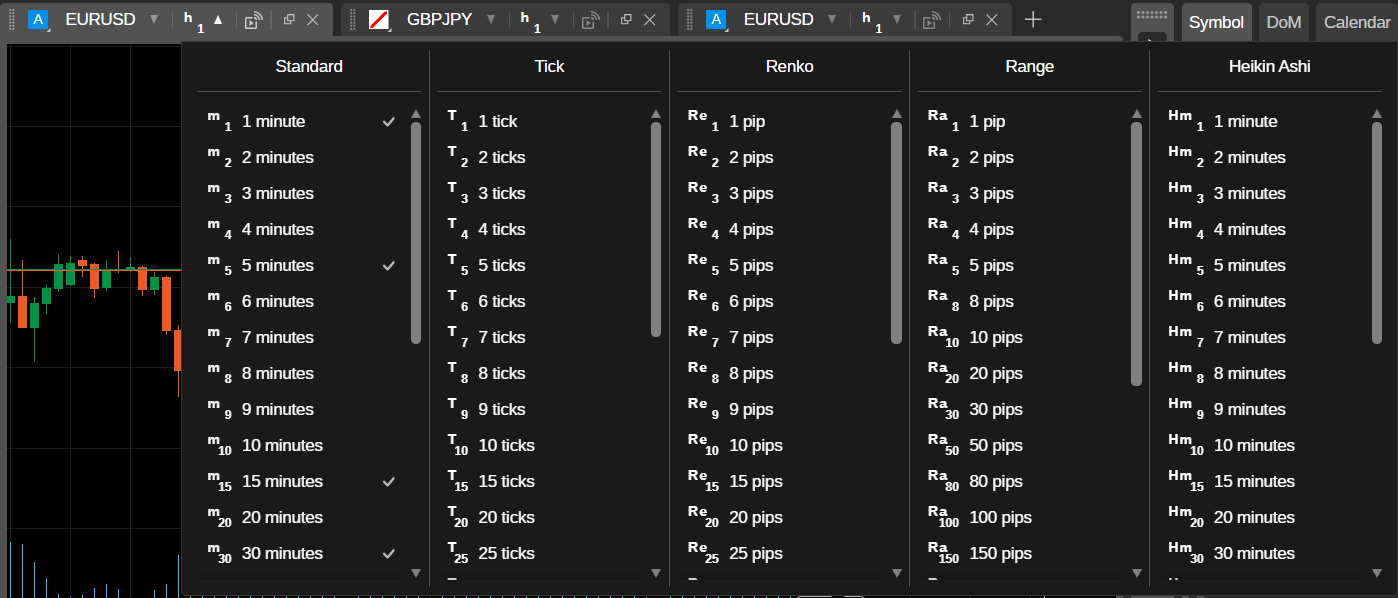
One-Click / Quick Trade
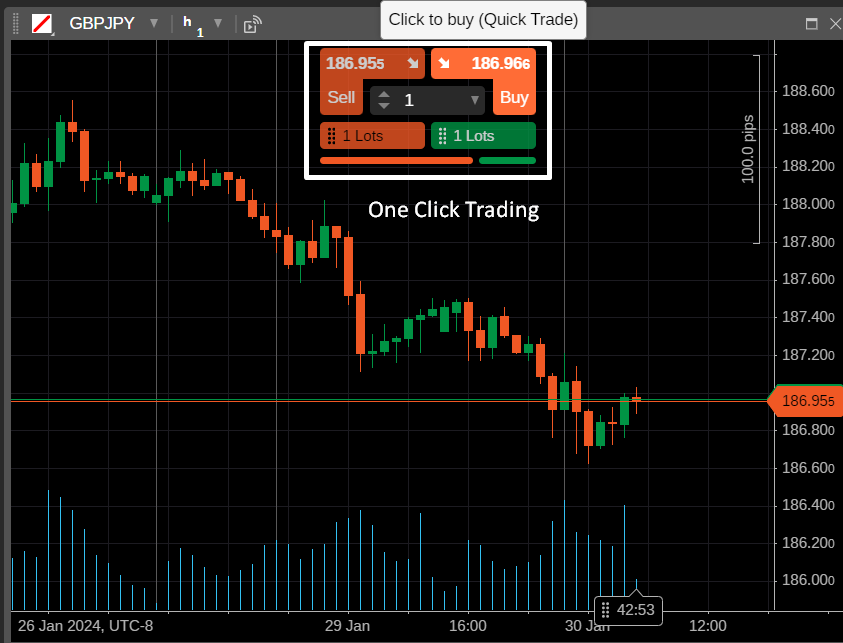
Quick Trade can send market orders with a single click when enabled, and cTrader lets users configure how market, stop and limit orders behave. This is efficient, but traders should double-check default volume and stop settings before using one-click execution.
cTrader Indicators and Visual Analysis
cTrader Keyboard Shortcuts
| Shortcut | Action |
|---|---|
| F9 | New order screen |
| F11 | Full screen |
| Ctrl+Tab / Ctrl+Shift+Tab | Next / previous chart |
| Ctrl+F | Search all symbols |
| Ctrl+N | Open new chart |
| Ctrl+Shift+N | Open detached chart |
| Page Up / Page Down | Fast chart scroll |
| + / – | Zoom in / out |
| Ctrl+A | Select all drawings |
| Ctrl+D | Manage chart drawings |
| Ctrl+I | Manage chart indicators |
| Ctrl+G | Show/hide grid |
| Ctrl+B / Ctrl+K | Show/hide Bid / Ask |
| Alt+1 / Alt+2 / Alt+3 / Alt+4 | Bar / Candlestick / Line / Dot chart |
| Middle mouse button | Toggle crosshair |
| Ctrl+Drag | Duplicate a drawing |
Desktop cTrader also allows hotkeys to be reassigned in Settings, while cTrader Web has a fixed shortcut set. This is a meaningful advantage for traders who build a keyboard-heavy workflow.
4. TradingView: Charting, Alerts and Fast Analysis
TradingView is especially useful when analysis comes before execution. Supercharts combine drawing tools, indicators, symbol search, alerts, multiple asset classes and Pine Script. Traders can use Paper Trading or connect supported brokers for eligible live trading.
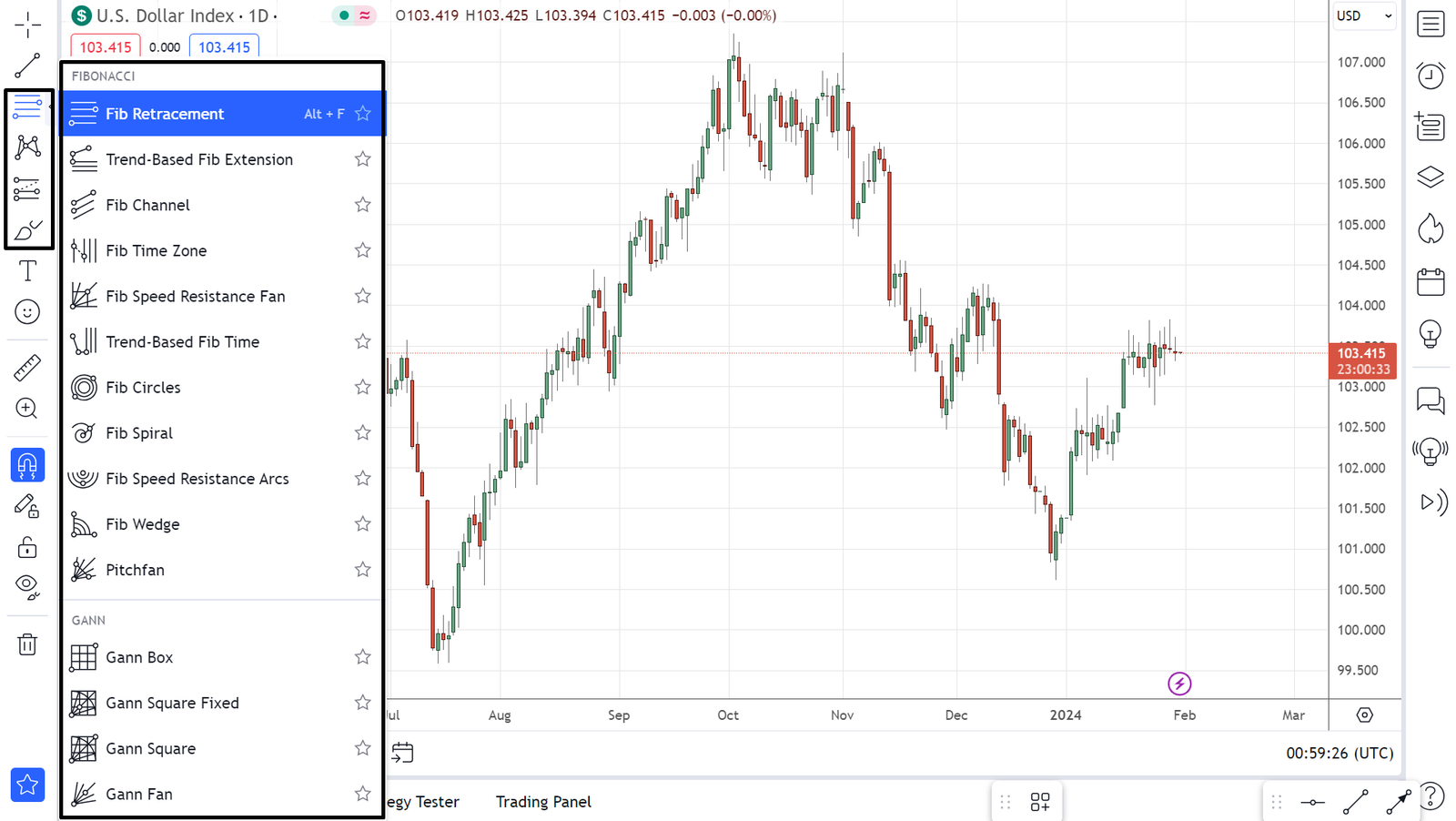
Its strongest productivity feature is speed: Quick Search, drawing shortcuts and alert hotkeys make it possible to move from idea to marked-up chart without constant menu navigation.
Drawing Tools and Fibonacci
Trendlines and Price Structure
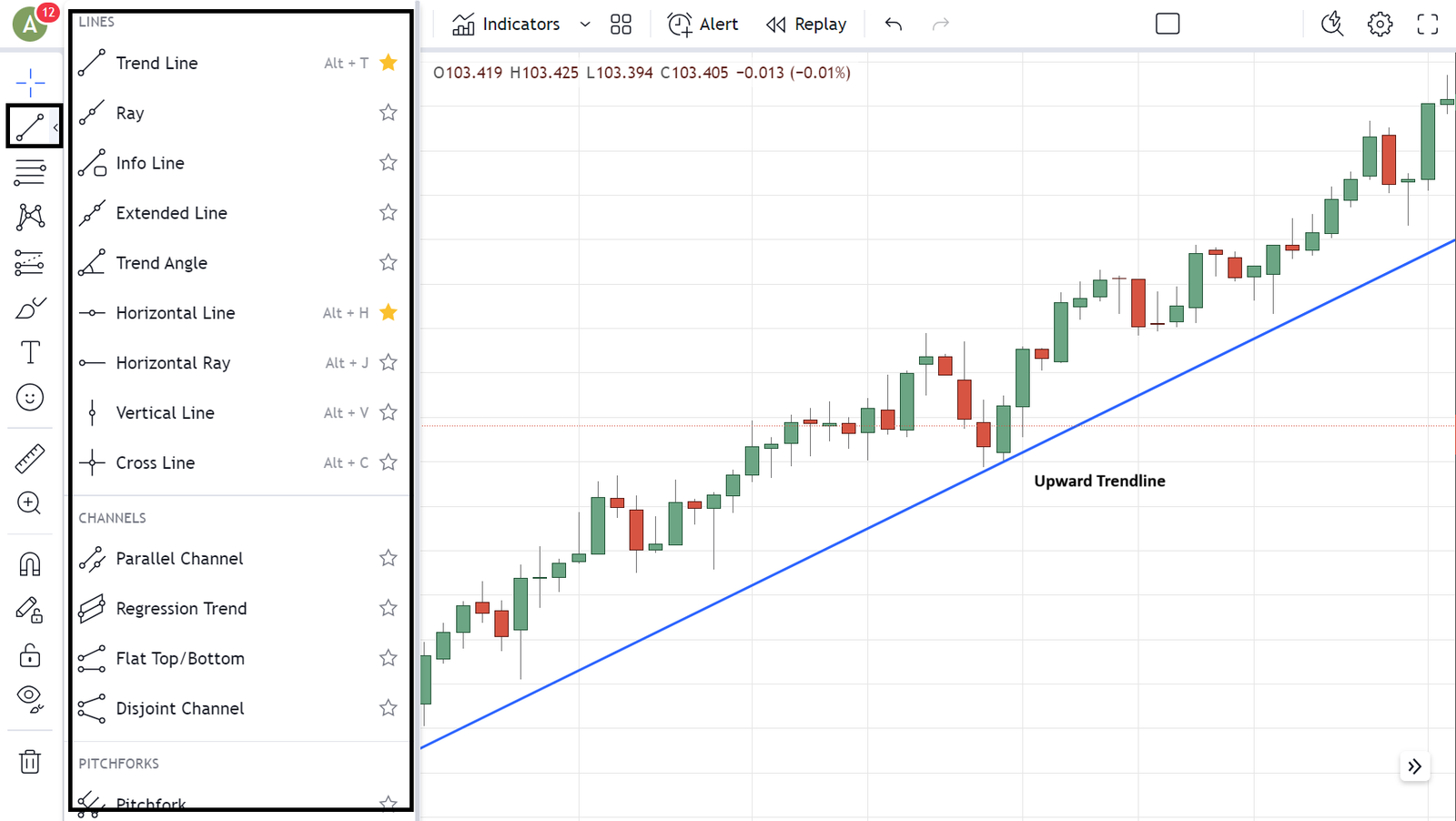
Trendlines are reference tools rather than guarantees that price will bounce. TradingView shortcuts make them faster to draw, but analysis quality still depends on where and why the line is placed.
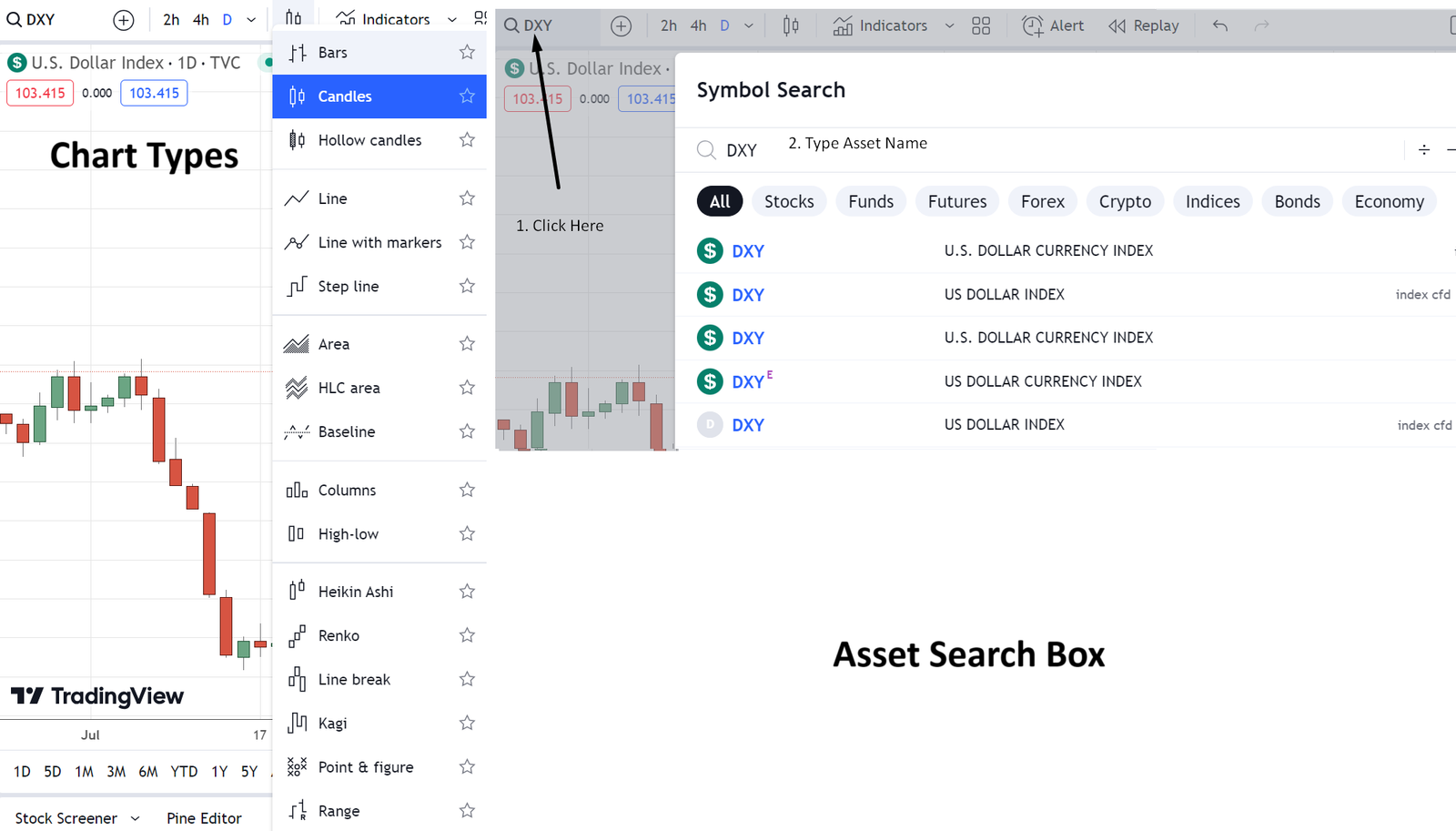
Chart Types and Symbol Search
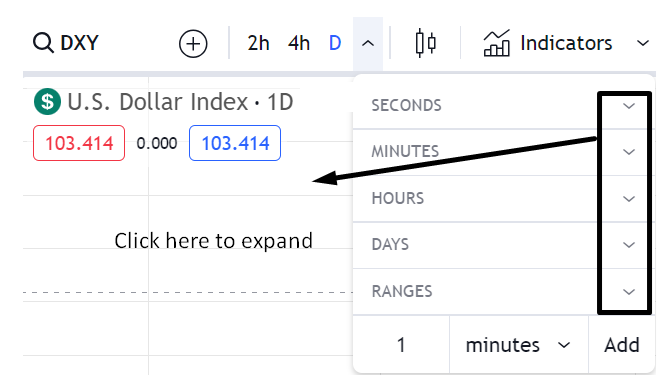
TradingView Timeframe Control
TradingView Keyboard Shortcuts Worth Learning
| Shortcut | Action |
|---|---|
| Ctrl+K | Open Quick Search |
| / | Open indicators |
| Alt+T | Draw Trend Line |
| Alt+H | Draw Horizontal Line |
| Alt+V | Draw Vertical Line |
| Alt+C | Draw Cross Line |
| Alt+F | Draw Fibonacci Retracement |
| Alt+A | Create alert |
| Ctrl+Alt+H | Hide/show all drawings |
| Ctrl+Drag | Clone a drawing |
| Ctrl+Click | Select multiple drawings |
| Shift+Drag | Move a drawing horizontally or vertically |
| Arrow Left / Right | Move chart one bar |
| Type a symbol | Change symbol quickly |
| Enter a number or comma | Change chart interval |
| Shift+Down | Start/pause Bar Replay |
| Shift+Right | Step forward in Bar Replay |
Alerts Are a Trading Tool, Not Just a Notification
TradingView alerts can be attached to prices, indicators, strategies and drawing tools. For a forex trader, this can reduce screen time: instead of staring at EUR/USD for hours, set an alert near the technical level that would make the setup relevant, then return to the chart when the condition is triggered.
Which Forex Trading Platform Is Best for You?
| Trader type | Platforms to test first | Reason |
|---|---|---|
| Beginner | MT5 or cTrader; TradingView for charting | Modern tools, easier long-term learning path, and strong analysis features. |
| Existing MT4 EA user | MT4 | Avoid migration if your strategy depends on MQL4 code. |
| Algorithmic trader | MT5 or cTrader | MT5 has a strong native tester; cTrader supports C# and Python. |
| Chart-focused discretionary trader | TradingView or cTrader | Fast drawing, chart management and alerts. |
| Scalper / very active manual trader | cTrader or MT5 | Test one-click trading, Depth of Market and broker execution. |
| Multi-asset analyst | TradingView or MT5 | Broader charting/market workflow, depending on broker/data connection. |
| Keyboard-heavy power user | MT4/MT5 or cTrader | Large shortcut sets and fast navigation tools. |
Platform Security: Do Not Confuse Software With Broker Safety
A familiar trading platform is not proof that the broker offering it is regulated. Fraudulent or weakly regulated firms can still distribute well-known trading software.
Verify the legal entity serving your account using the relevant regulator’s official register. Then evaluate client-money rules, withdrawal procedures, two-factor authentication, account recovery and the broker’s execution policy.
Be cautious with third-party Expert Advisors, indicators and scripts. They can create operational, privacy or security risks if the source is not trustworthy.
12-Point Forex Platform Checklist
Verify the broker and legal entity separately from the platform.
Check the currency pairs and other markets you actually need.
Compare spreads, commissions, overnight financing and data/platform fees.
Place test market, limit and stop orders in demo mode.
Measure a sample stop and target using the platform’s chart tools.
Test the shortcuts you expect to use regularly.
Check whether your custom indicators or EAs are compatible.
If you automate, test the strategy tester and optimisation workflow.
Test mobile order modification and notifications.
Confirm alerts work when the platform is not actively on screen.
Observe execution during volatile periods rather than judging only the interface.
Choose the platform that reduces mistakes and friction in your process.
Frequently Asked Questions
What is the best forex trading platform?
There is no universal winner. MT5 is the strongest all-round MetaTrader option, MT4 remains valuable for legacy MQL4 tools, cTrader is strong for modern manual/algo workflows, and TradingView is especially strong for charting and alerts.
Is MT5 better than MT4?
For most new users, yes in terms of native functionality: MT5 has more timeframes, more built-in analytical tools, Depth of Market and a stronger Strategy Tester. MT4 can still be the better practical choice if your broker or trading tools depend on MQL4.
What are the most useful MT4 shortcuts?
F9 for New Order, Ctrl+T for Terminal, Ctrl+M for Market Watch, Ctrl+N for Navigator, Ctrl+F for Crosshair, Ctrl+G for Grid, Ctrl+R for Strategy Tester and F12/Shift+F12 for bar-by-bar review are among the most useful.
Can I trade forex directly on TradingView?
Yes, when a supported broker and eligible account/instrument are connected. TradingView is the interface; the broker handles the account and execution.
Does cTrader support Python?
Yes. Current cTrader Algo supports C# and Python for cBots, custom indicators and plugins on supported desktop environments.
Which platform is best for automated forex trading?
MT5 and cTrader are strong current choices. MT5 uses MQL5 and a powerful Strategy Tester; cTrader supports C# and Python. MT4 remains relevant for established MQL4 systems.
Is one-click trading safer or better?
It is faster, not safer. It removes confirmation steps, so traders should verify default position size and risk settings before enabling it.
Do hotkeys improve trading results?
Hotkeys improve workflow speed and reduce navigation friction, but they do not improve the quality of a strategy. Faster execution of a bad decision is still a bad decision.
Does a better platform mean better execution?
No. Execution depends heavily on the broker, liquidity, network conditions and order type. The platform is the interface through which the order is sent.
Bottom Line
Headline platform features only tell part of the story. In practice, the details matter: how quickly you can open an order, measure a stop, switch charts, manage drawings, review history, test an EA or create an alert.
MT4 is still useful when the MQL4 ecosystem is the reason you use it. MT5 is the stronger MetaTrader platform for most new users. cTrader offers an excellent modern manual and algorithmic workflow, especially for C# or Python users. TradingView remains one of the strongest charting and alert environments for traders who analyse several markets.
The best choice is the platform that fits your actual process and connects to a trustworthy broker with appropriate regulation, pricing and execution. Test the software in demo mode before committing capital.
Editorial Sources
Platform specifications and workflows were checked against primary documentation from MetaTrader 4, MetaTrader 5, cTrader and TradingView. Ahrefs research informed the search targeting for forex trading platforms, best forex trading platform, forex trading tools and MT4 vs MT5.
Risk Warning
Forex and leveraged derivatives involve substantial risk. Platforms, indicators, automation and faster order entry do not guarantee profitable results. Regulation, pricing, leverage and protections vary by broker and jurisdiction. This article is educational, not personalised financial advice.
Sources & Methodology
Primary-source standard: Market-moving facts should link to original data releases, regulator notices, company filings or official project announcements whenever available. Secondary reporting is used for additional context, not as a substitute for original evidence.
Page last reviewed: